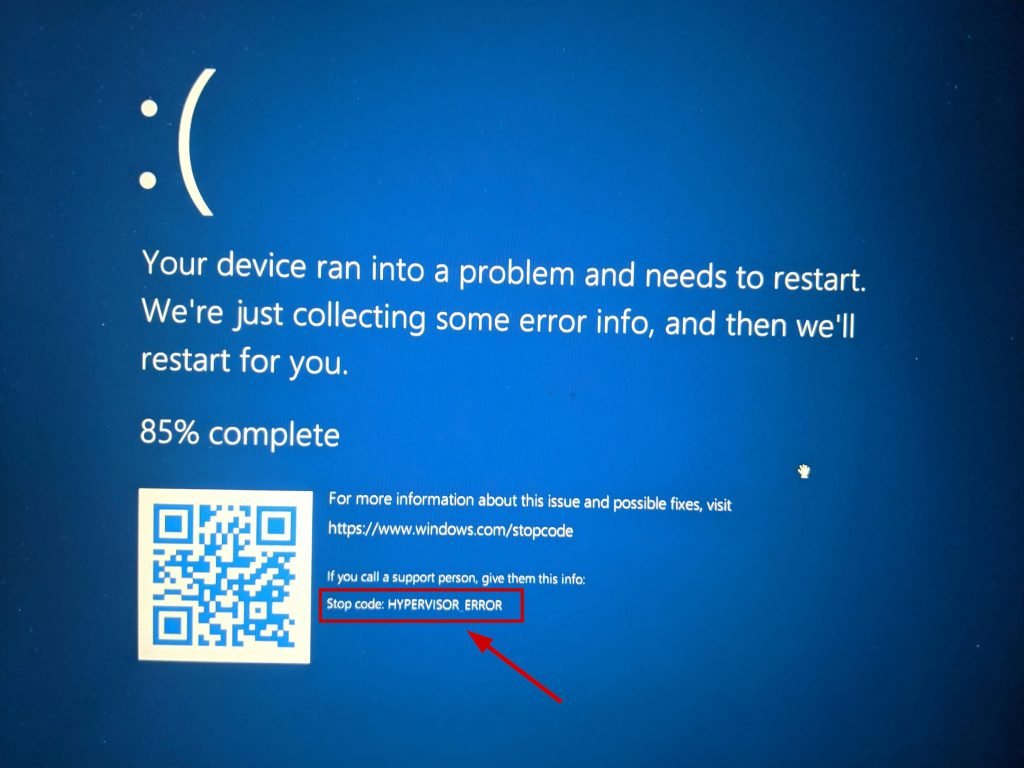
Encountering an "error screen" on your computer can be jarring. One moment you're working, browsing, or gaming, and the next, your screen is plastered with text, a sad face, or even just an ominous black backdrop. This isn't just a minor glitch; it's your computer's way of telling you something has gone fundamentally wrong. Often, it's a critical system problem, a "stop error," that has forced your operating system to halt to prevent further damage. Understanding these signals is the first step toward diagnosing and resolving the underlying issue, and our comprehensive hub is here to guide you through every step.
Unmasking the Blue Screen of Death (and its Cousins)
The most infamous of all error screens is undoubtedly the Blue Screen of Death (BSoD), also known as a fatal error or bugcheck. This critical error screen, predominantly associated with Microsoft Windows, indicates a system crash where the operating system can no longer function safely. While its signature blue hue is iconic, the appearance has evolved dramatically, even turning black in recent Windows 11 iterations. But regardless of color, the message is clear: your system has encountered an unrecoverable error.
These screens are designed to provide immediate, albeit cryptic, information about what went wrong. They are not merely cosmetic; they're diagnostic reports from your deepest system processes. To truly get a handle on what these messages mean for your specific situation, you'll want to dive into Understanding Common Error Messages.
Why Your System Throws a Stop Error: Common Causes
An error screen doesn't just pop up for no reason. It's a symptom, not the disease. The causes behind a BSoD or similar critical error are varied and can range from easily fixable software conflicts to serious hardware malfunctions. Here's a look at the most frequent culprits:
- Faulty Device Drivers: Poorly written or incompatible device drivers are a very common cause. These are the software components that allow your operating system to communicate with your hardware (graphics cards, printers, network adapters, etc.).
- Hardware Malfunctions: Issues with components like RAM (faulty memory modules), the power supply, an overheating CPU, or even components running beyond their specification limits can trigger a stop error.
- Software Bugs and Conflicts: While rarer in modern operating systems, bugs within the OS kernel itself or conflicts between different applications and system services can lead to crashes.
- Viruses and Malware: Malicious software can corrupt system files or interfere with core processes, destabilizing your entire system and leading to a crash.
- Corrupted System Files: Critical Windows files can become damaged due to improper shutdowns, disk errors, or malware, leading to instability.
- Overclocking or Incorrect BIOS Settings: Pushing hardware beyond its designed limits or misconfiguring fundamental system settings in the BIOS/UEFI can easily lead to instability.
Pinpointing the exact cause requires a bit of detective work, often starting with the error code itself. For deeper insights into identifying the root of your problem, consider exploring Advanced Diagnostics & Log Analysis.
Deciphering the Message: What Your Error Screen Tells You
The information displayed on an error screen has changed significantly over the years. What was once a dense block of technical jargon is now often simplified, though the underlying data remains critical for diagnosis.
- STOP Codes: These hexadecimal codes (e.g.,
0x0000001E,0x00000050) are the core of the error message. They represent specific types of system failures, often accompanied by a symbolic name likeKMODE_EXCEPTION_NOT_HANDLEDorPAGE_FAULT_IN_NONPAGED_AREA. - The Sad Face (and its removal): Since Windows 8, many BSoDs have featured a prominent sad emoticon :-( and a concise message like "Your PC ran into a problem and needs to restart." This was designed to be less intimidating, though recent Windows 11 builds have started to revert to a more detailed layout, reintroducing the hexadecimal code for easier identification.
- QR Codes: Windows 10 (and some earlier Windows 11 builds) even included a QR code, allowing users to quickly scan and access Microsoft Support resources. This feature, too, is being phased out in newer versions.
- Memory Dumps: Crucially, Windows often creates a memory dump file (a "minidump") when a BSoD occurs. This file contains valuable information about the system state at the time of the crash, which can be invaluable for advanced troubleshooting.
Learning to read these clues is essential. Our guides can help you interpret common error messages and their specific codes.
When Your PC Won't Boot: Initial Troubleshooting Steps
One of the most frustrating scenarios is when an error screen prevents your computer from starting up entirely. In these critical moments, a systematic approach is key. You'll need to work through basic checks before diving into more complex solutions.
- Disconnect External Devices: Unplug all non-essential peripherals (printers, external hard drives, USB devices, etc.) except your keyboard and mouse. Restart to see if a faulty device was the culprit.
- Perform a Hard Reset: Power off your computer, disconnect the power source, and hold the power button down for 15-20 seconds to drain any residual power. Reconnect and try booting again.
- Reset BIOS/UEFI to Default Settings: Access your computer's BIOS/UEFI settings during startup (often by pressing F2 or Del repeatedly) and restore settings to their factory defaults. Incorrect settings can sometimes cause boot failures.
- Run Built-in Diagnostics: Many manufacturers, like Dell with their SupportAssist Pre Boot System Assessment, offer integrated diagnostic tools. These can often identify hardware issues before the operating system even loads.
These steps are often just the beginning. For detailed, step-by-step instructions on resolving common startup issues, be sure to Explore our error resolution guides. You might also find specific solutions tailored to your system by looking at Berikut beberapa pilihan: Troubleshoot platform issues.
Keeping Your System Healthy: Preventing Future Errors
While some error screens are unavoidable, many can be prevented with regular maintenance and proactive measures. Once your system is up and running, implementing these habits can significantly reduce your chances of encountering another critical error.
- Keep Your Software Updated: This includes your operating system (Windows Update), device drivers, and BIOS/UEFI firmware. Updates often contain critical bug fixes, security patches, and compatibility improvements that prevent conflicts. Use manufacturer tools like Dell's SupportAssist to keep everything current.
- Scan for Malware: Regularly run comprehensive scans with reputable antivirus and anti-malware software. Keeping your system clean is paramount to its stability.
- Maintain System Files: Use built-in Windows tools like the System File Checker (SFC) and Deployment Image Servicing and Management (DISM) to check for and repair corrupted system files. These commands (
DISM /Online /Cleanup-Image /RestoreHealth) can fix underlying issues before they escalate. - Monitor Hardware Health: Keep an eye on your computer's temperature, especially under load. Overheating is a common cause of instability. Ensure proper airflow and clean out dust from fans and vents regularly.
Prevention is always better than cure. To learn more about how to safeguard your system and minimize future headaches, Learn preventative measures and maintenance.
Deep Dive: Advanced Tools and Techniques for Diagnosis
When the basic troubleshooting steps don't resolve the issue, it's time to dig deeper. Windows provides powerful tools that can help diagnose complex problems, often by analyzing the data generated during a crash.
- Analyzing Minidump Files: When a BSoD occurs, Windows usually creates a small
minidumpfile (e.g., inC:\Windows\Minidump). These files contain vital information about the crash, including the STOP code, offending driver, and memory context. Tools like Windows Debugger (WinDbg) can analyze these files to provide a detailed report, helping you pinpoint the exact cause of the crash. - Event Viewer: The Windows Event Viewer (
eventvwr.msc) is a log of all system events, including errors, warnings, and informational messages. After a crash, checking the "System" logs can often reveal preceding events or errors that led up to the BSoD. Look for critical errors around the time of the crash. - Disabling Automatic Restart: By default, Windows often reboots automatically after a BSoD, giving you only a fleeting glimpse of the error message. Disabling this feature in "Startup and Recovery" settings allows the error screen to remain visible, giving you time to note down the STOP code and other details.
For those ready to delve into the technical details and truly become their own tech detective, our specialized guides on Advanced Diagnostics & Log Analysis offer comprehensive walkthroughs.
Beyond the Blue: Other Important Considerations
While the BSoD is primarily associated with Windows, similar critical error screens exist across other operating systems. macOS has kernel panics, and Linux systems can experience their own forms of critical system errors, sometimes referred to as bugchecks. Each has its unique diagnostic output, but the core principle remains: a fundamental system failure.
It's also important to distinguish between a critical error screen and a simple system freeze. A BSoD or similar stop error explicitly displays a message and halts the system. A system freeze, conversely, is when your computer becomes unresponsive, but doesn't necessarily display an error message. While both are frustrating, they indicate different levels of system failure and require different diagnostic approaches.
Empowering Your Digital Journey
An error screen can feel like a brick wall, but with the right knowledge and tools, it becomes a crucial diagnostic aid. Our Super Pillar hub is designed to demystify these critical system messages, empower you with actionable troubleshooting steps, and equip you with the knowledge to maintain a more stable, resilient computer system. Don't let an error screen be the end of your computing; let it be the start of a deeper understanding and mastery of your machine.